

You open your checkout and the payment option you expected is not there: the PayPal button is missing, the card form is blank, or Apple Pay and Google Pay never appear. Sometimes it affects every visitor, sometimes only some. This guide covers the usual reasons, from the most common to the least, and how to tell which one you have.
First, find out where and for whom it is missing
Before changing anything, answer these questions. They usually point straight at the cause.
- Where is it missing? Only on the checkout page, or also on the cart or product page?
- Who sees it? Try a different browser, a different device, a private window, and both logged in and logged out.
- Which button? A missing card form points to a different cause than a missing express button.
- Did it ever work? If it did, think about what changed around the time it stopped.
1. The gateway is not available for that customer or cart
WooCommerce only offers a gateway when it applies. Currency, billing or shipping country, order minimums and maximums, and the products in the cart can all hide it. A cart with a subscription or a virtual product may show different options than a normal one. Check the gateway settings under WooCommerce, Settings, Payments, and compare a simple cart with the cart that fails.
2. The wallet is not supported where you are testing
Express wallets only appear when the customer’s browser and device support them. Apple Pay needs a supported Apple device and browser, and the gateway usually requires your domain to be verified. Google Pay needs a supported browser. If you test on the wrong browser, the button will not appear, and nothing is broken. Check your gateway’s documentation for what it needs.
3. Keys, mode or account settings
A button can be missing because the gateway is in the wrong mode, the keys are wrong, or the payment method is not enabled on the provider’s side. Confirm that the keys match test or live mode, and in your provider’s dashboard that the method (for example a specific wallet or card type) is switched on for your account.
4. A script is blocked or failing
Most payment buttons and card fields load a script from the payment provider. If it cannot load or crashes, the button does not appear. Open the browser console (F12) on the checkout and look for red errors, or for failed requests to the provider’s domain. Common causes:
- Ad blockers and privacy extensions that block third-party scripts. Test with extensions off.
- Cookie and consent tools that hold back scripts until consent is given.
- A security header such as a content security policy that does not allow the provider’s domain.
- A JavaScript error elsewhere on the page that stops later scripts from running.
5. An optimisation plugin changed how scripts load
Settings that minify, combine, defer or delay JavaScript can break payment scripts, especially options that wait for the first user interaction. Turn these off for the checkout page, or exclude the payment scripts, and test again.
6. The block checkout does not support the gateway
WooCommerce has two kinds of checkout: the newer block-based one and the older shortcode one. A gateway plugin must support the one you use. If it was built only for the shortcode checkout, its option may be missing in the block checkout. Check that the gateway plugin is up to date and says it supports the Cart and Checkout blocks. If it does not, you can use the shortcode checkout until it does.
7. Your theme overrides checkout templates
A theme or custom code that replaces WooCommerce’s checkout or payment templates can leave out the part that outputs payment methods or express buttons. Test with a default theme such as Storefront. If the buttons come back, look for overridden template files in your theme.
8. A plugin conflict
Another plugin can stop the gateway’s code from running. If nothing above explains it, follow the conflict-testing steps in our guide on how to detect WooCommerce plugin conflicts.
9. SSL and mixed content
Some gateways will not show their fields on a page that is not fully secure, and browsers can block insecure resources on an HTTPS page. Check the console for mixed content warnings, and make sure your site address starts with https.
Why this one is easy to miss
A payment button that does not appear creates no failed payment. The customer simply cannot pay, and usually leaves without telling you. Your pages still load, so uptime tools see nothing wrong, and the only sign may be fewer orders than usual.
The free Kodenzo Commerce Health plugin checks your payment and checkout configuration on demand, which helps rule out setup causes. Commerce Health PRO watches in the background for the things that often cause this: JavaScript errors on the checkout page, plugin activations and updates, and rising payment failures. It cannot see a button that simply did not render when no error is raised and nobody attempts to pay, so keep an eye on order volume as well. See how WooCommerce payment monitoring works.
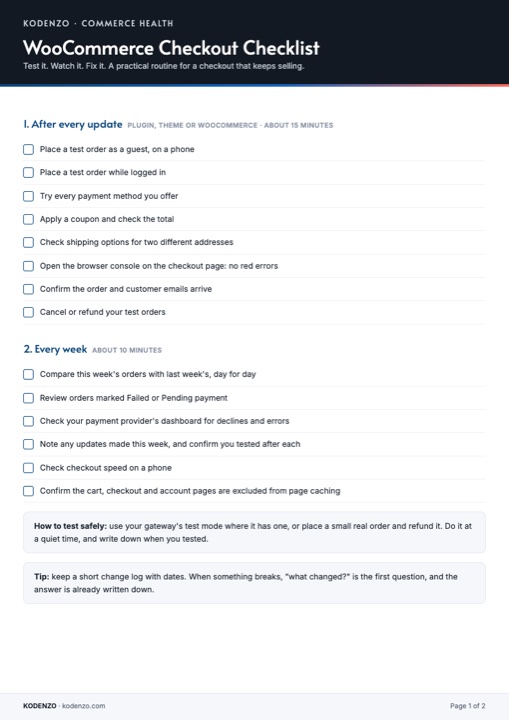
Free download · PDF
WooCommerce Checkout Checklist
What to test after every update, including each payment method, on one printable page.