

A customer fills in the checkout, clicks the button, and the page just keeps spinning. Or the order total sits behind a loading overlay and never updates. Nothing says “error”. It just does not finish.
In almost every case the page is waiting for a request that never comes back, or that came back with an error the page cannot show. This guide shows how to find that request, and what each kind of result usually means.
What “stuck loading” usually means
WooCommerce checkout does not reload the whole page every time something changes. It sends small background requests, for example to refresh totals when the country changes, or to place the order. The spinner shows while one of those requests is waiting.
- Classic checkout uses requests that contain
wc-ajax=update_order_review(refresh totals, shipping and payment methods) andwc-ajax=checkout(place the order). - The Checkout block uses the WooCommerce Store API, with addresses that start with
/wp-json/wc/store/.
If one of those requests is blocked, fails, or never finishes, the spinner stays. The job is to find out which one, and what it returned.
Step 1: rule out the easy causes
- Open the checkout in a private window, so extensions and old cookies are out of the way.
- Try a different browser and a phone on mobile data. If it works there, the problem may be one customer’s setup, or your office network.
- Clear your site cache and your CDN cache, then try again. A cached checkout page is a common cause.
Step 2: find the request that hangs
This is the step that turns guessing into an answer.
- On the checkout page, open your browser’s developer tools and go to the Network tab.
- Type
wc-ajax(classic checkout) orstore(Checkout block) into the filter box. - Reload the page and trigger the problem, for example by changing the country or clicking the place-order button.
- Look for a request that is red, or that stays “pending”. Click it and read its Status and its Response.
- Also open the Console tab and note any red errors.
Step 3: read the result
| What you see | What it usually means | What to check |
|---|---|---|
| Status 403 or 406, or a “blocked” message | A firewall is rejecting the request | Your host’s firewall (ModSecurity), a security plugin, or a CDN rule such as Cloudflare. Check their logs for the blocked address. |
| Status 500 or 502 | A PHP error or a crash on the server | The PHP error log, WooCommerce → Status → Logs, and the PHP memory limit. Then test for a plugin conflict. |
| Status 404, or a redirect | The address is not being reached correctly | Re-save Settings → Permalinks, and check for an HTTP to HTTPS redirect or a caching rule that rewrites the address. |
| Status 200, but the page still spins | A script error in the browser | The Console tab. Look for errors from a plugin, theme or an optimisation plugin that minifies or delays scripts. |
| Stays “pending” for a long time, then times out | The server is waiting on something slow | Live shipping rate lookups, a tax or address service, a slow payment script, or a server with too few resources. |
| Checkout block only: Store API request fails | The REST API is restricted | A security or “disable REST API” plugin that blocks visitors who are not logged in. |
Common causes in more detail
A firewall or security rule
Checkout requests send a lot of form data, which is exactly what some firewalls are built to distrust. If you see a 403 or 406, ask your host to check the firewall log for that moment. A rule that blocks the request needs to be adjusted, not worked around.
A script optimisation or caching plugin
Minifying, combining, deferring or delaying JavaScript can stop the checkout script from running at the right time. Exclude the checkout, cart and account pages from page caching and from script optimisation, clear the cache, and test again.
A plugin or theme conflict
A checkout-field plugin, a one-page checkout tool, or a payment or shipping plugin can break the requests. Test on a staging copy with a default theme and only WooCommerce and your payment plugin, then turn the rest back on one at a time. Our guide on how to detect WooCommerce plugin conflicts covers a safe way to do this.
Slow lookups during checkout
Every time the address changes, WooCommerce recalculates shipping and tax. If a plugin asks an outside service for live rates and that service is slow, the whole checkout waits. A shipping or tax plugin that responds slowly is worth testing first.
A recent update
If the problem began right after an update, that update is the first suspect. Roll back on staging to confirm, and read the release notes. Our 10-minute checkout test shows what to check after each update.
Why it often goes unnoticed
A spinner does not create an error report, and the customer rarely tells you. They just leave. It can also affect only one country, one browser or one payment method, so it works every time you test. If you only find out from a drop in sales, see what to check when WooCommerce orders suddenly drop.
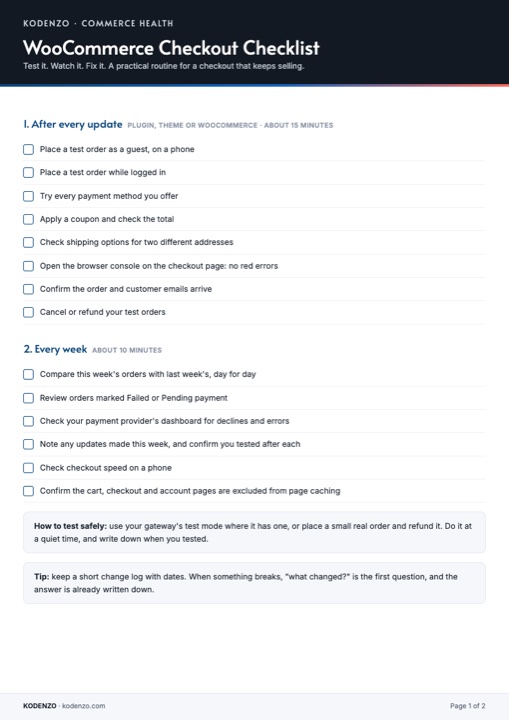
Free download · PDF
WooCommerce Checkout Checklist
What to test after every update and what to check first when checkout breaks, on two printable pages.
Catching it sooner
The free Kodenzo Commerce Health plugin runs read-only checks on demand across your store configuration, which helps rule out setup problems. Commerce Health PRO watches in the background for JavaScript errors on the checkout page, plugin updates and changes, failing payments and real-visitor checkout speed, so a broken checkout shows up on your dashboard soon after it starts. It cannot see why your server or firewall rejects a request, it does not place test orders, and it cannot fix the problem for you. See how WooCommerce checkout monitoring works.