

A plugin conflict happens when two pieces of code, usually two plugins or a plugin and your theme, interfere with each other. On a WooCommerce store the damage tends to show up at checkout: a dead place-order button, missing payment options, a broken layout, or an error page. This guide shows how to confirm it is a conflict, find the plugin responsible, and notice the next one sooner.
Signs you may have a plugin conflict
- Something that worked yesterday stopped working, with no setting changed.
- The problem started right after a plugin, theme or WooCommerce update, or after a new plugin was added.
- The browser console shows JavaScript errors on the checkout, cart or product page.
- Pages show a critical error, a white screen, or a layout that has broken.
- Prices, shipping options or emails behave differently than before.
1. Build a timeline of changes
Write down what changed and when: plugin updates, theme updates, WooCommerce updates, new plugins, and any change to settings or custom code. Check the Plugins screen for versions that moved recently, your hosting panel or backup list for dates, and whether automatic updates are switched on, because those can change things without you noticing. A conflict almost always starts at one of these moments.
2. Look for clues in the errors
Errors often name the plugin that caused them.
- Browser console. Open the Console tab (F12) on the page that breaks. File paths such as
/wp-content/plugins/plugin-name/point at the plugin whose script failed. - WooCommerce logs. In WooCommerce, Status, Logs, look for recent fatal error entries. They list the file and line where PHP stopped.
- The PHP error log. Turn on WP_DEBUG_LOG temporarily, repeat the problem, and read the log in wp-content. Fatal errors name the file involved.
A clue is not proof. A plugin can appear in an error because it was the one that broke, or because something else broke it. Treat it as the first thing to test.
3. Test without affecting customers
Never experiment on the live store while customers are buying. Use a staging copy if you have one. If you do not, the official Health Check and Troubleshooting plugin has a troubleshooting mode that changes the theme and plugins only for your own session, while visitors keep seeing the normal site.
4. Narrow it down
With every plugin except WooCommerce deactivated, check whether the problem is gone. If it is, reactivate plugins in halves: turn half back on, test, and keep the half that brings the problem back. Repeat. Each round halves the list, so even a store with thirty plugins takes only a handful of tests, rather than thirty.
5. Rule out the theme
Switch to a default theme such as Storefront and test again. If the problem disappears, the conflict involves your theme, often through overridden WooCommerce templates. Check whether your theme has outdated template files and whether an update is available.
6. Fix it
- Update both sides. Check whether either plugin has a newer version, and read the changelog.
- Report it. Send the plugin’s support the exact steps, the error message and the versions involved. A clear report gets answered faster.
- Roll back temporarily. If an update caused it, going back to the previous version of that plugin can restore your store while you wait for a fix. Take a backup first.
- Replace or remove. If a plugin is abandoned or the conflict cannot be fixed, find an alternative.
- Custom code. If the conflict involves your own code or a custom plugin, it usually needs a developer.
How to prevent the next one
- Update on a staging copy first, then on the live site.
- Update one plugin at a time, and test the checkout after each.
- Keep a short change log with dates, so the timeline in step 1 already exists.
- Take a backup before updates.
- Be careful with automatic updates on a store that earns money, because they change things without a test.
How to catch a conflict sooner
The hard part of a conflict is not fixing it, it is knowing it happened. Many stores find out only when a customer complains, after the problem has been costing sales for hours or days.
Commerce Health PRO records plugin activations, deactivations and updates, and keeps watching checkout. About two hours after a change, it compares the two hours before and the two hours after: if new JavaScript errors appeared on the checkout page, or payment failures rose, it raises an issue that names the plugin, so you know where to start. It points to a likely culprit rather than proving one, and it needs real orders and visits to work with. It does not test plugins for compatibility ahead of time, and it will not roll anything back for you.
The free Kodenzo Commerce Health plugin runs read-only checks on demand and can help rule out configuration problems while you investigate. Read how WooCommerce checkout monitoring works, or see how payment monitoring spots failing gateways.
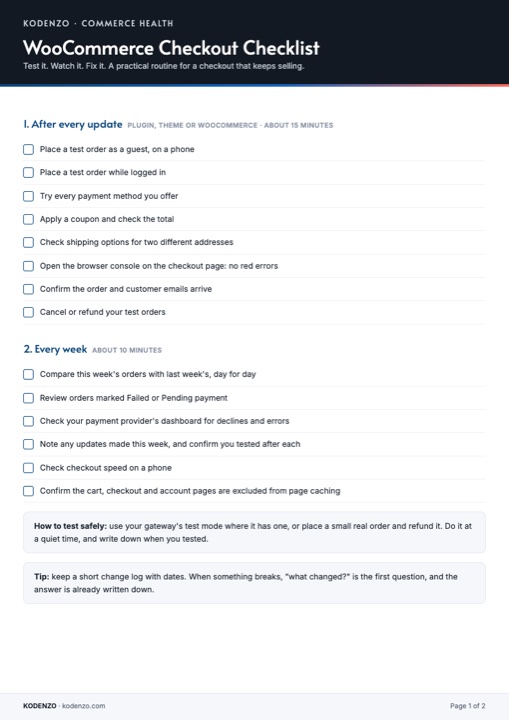
Free download · PDF
WooCommerce Checkout Checklist
The after-every-update test, so a conflict shows up the same day you cause it.