

WooCommerce 11.6, planned for February 2027, will require PHP 8.1 or newer. If your store runs PHP 7.4 or 8.0, you will see a notice from WooCommerce 11.3 and can keep updating only up to WooCommerce 11.5, so plan the PHP upgrade now and test it on a staging copy first.
WooCommerce announced the change in a developer post on 29 September 2026. This guide explains what it says, how to find your PHP version, your options, and how to upgrade in a way that reduces the risk to your checkout. A free printable checklist is at the end.
On PHP 7.4 or 8.0? Upgrade PHP on a staging copy first, then run the free Commerce Health scan there. The plugin needs PHP 8.1 or newer, so WordPress will not activate it on older versions.
Download the free PHP 8.1 readiness checklist (PDF)
What WooCommerce announced
The official post sets out four points:
- WooCommerce 11.6 requires PHP 8.1 or newer. It is planned for February 2027.
- WooCommerce 11.3 adds a notice. It appears in the WordPress admin for stores on PHP 7.4 or 8.0, shows the server’s current PHP version, recommends contacting your hosting provider about an upgrade, and can be dismissed. It works on those PHP versions, so you do not need to change PHP to keep using 11.3.
- 11.5 is the last planned release compatible with PHP 7.4 and 8.0. Stores on those versions can keep updating WooCommerce up to 11.5.
- The recommended PHP version is 8.3 or newer, according to WooCommerce’s server requirements.
The reason given is that PHP 7.4 and 8.0 no longer receive upstream security support, and supporting them adds older dependencies and extra testing. The post notes that the date moved to 11.6 after feedback on an earlier proposal.
How to check your PHP version
Use whichever is quickest:
- WooCommerce, Status. Open the Server environment section and read the PHP version. This is the check WooCommerce itself recommends.
- Tools, Site Health, Info, Server. This is WordPress’s own view of the same setting.
- Your hosting panel. Most hosts show the PHP version, and let you change it, in their control panel. If you cannot find it, ask your host.
Does this affect your store?
- PHP 7.4 or 8.0: yes. You will see the notice from WooCommerce 11.3, and you will not be able to move to 11.6 until PHP is upgraded.
- PHP 8.1 or 8.2: you meet the 11.6 minimum, but PHP 8.1 has reached end of life and no longer gets security fixes, and PHP 8.2 gets security fixes only until 31 December 2026 (see the PHP supported versions). WooCommerce recommends 8.3 or newer, so plan a move.
- PHP 8.3 or newer: nothing to do for this change.
In its post, WooCommerce reports that about 7% of tracked stores were on PHP 7.4 and 2% on PHP 8.0, from its opt-in usage figures (a sample, not a full count), so you are not alone if this applies to you.
Your options
Upgrade PHP (recommended)
Move to PHP 8.3 or newer if your theme and plugins support it. PHP 8.1 is the minimum for WooCommerce 11.6, but it no longer gets security fixes, so treat it as a stepping stone. This lets you take WooCommerce 11.6 when it arrives and keeps you on supported software.
Stay on WooCommerce 11.5 for a while
WordPress normally blocks an update when the server does not meet a plugin’s PHP requirement, and the change does not deactivate an existing installation. So a store that cannot upgrade yet can stay on 11.5. WooCommerce describes this as temporary: other fixes generally ship only for the latest release, and PHP 7.4 and 8.0 are themselves out of upstream support, so a WooCommerce patch cannot fix every risk at the PHP level.
Upgrade PHP safely: staging first
- Take a full backup, and check you know how to restore it.
- Make a staging copy of the store. Many hosts offer this in one click.
- Change the PHP version on staging, not on the live site.
- Check for errors. Turn on WP_DEBUG_LOG temporarily on staging, load the home page, a product, the cart and the checkout, and read the log in wp-content for fatal errors and deprecation notices.
- Run the checks below and note anything that fails.
- Update or replace anything that fails. Look for newer versions of the plugin or theme, ask the author, or find an alternative.
- Apply the change to the live site at a quiet time, check WooCommerce, Status again, and repeat the critical checks.
What to test after the change
A store can look normal on the home page while one part of checkout is broken. After the PHP change, test the parts that earn money:
- Checkout: place a guest order and a logged-in order, on desktop and on a phone.
- Payments: every active payment method, in test mode or with a small real order.
- Shipping and tax: the countries and postcodes you actually sell to.
- Emails: the customer confirmation and the admin new-order email.
- Scheduled tasks: WooCommerce, Status, Scheduled Actions, with nothing failing or long overdue.
- Admin: order management, coupons and product editing.
- Theme, extensions and custom code, including anything that talks to another system, such as shipping or accounting.
For a fuller routine, see How to Test WooCommerce Checkout After an Update.
Will my plugins and theme work on PHP 8.1?
Most will, but nobody can promise every one. In its official post, WooCommerce says it ran a static analysis of the 1,357 extensions available for purchase and found potential PHP 8.1 issues in 0.22% of them, which it is reviewing manually with developers. It says that screening cannot guarantee that every extension, theme or integration will work. Older plugins, themes and custom code are the usual place to look, and a staging test is how you find out for your own store.
Where Commerce Health helps
The free KODENZO Commerce Health plugin runs read-only checks on demand across your store’s configuration. Two honest points about using it for this change:
- It needs PHP 8.1 itself. WordPress will not activate it on PHP 7.4 or 8.0, so it cannot give those stores a “before” scan. Run it on your upgraded staging copy, or after the upgrade.
- It does not test your checkout. Keep the manual checks above.
Once you are on PHP 8.1 or newer, a scan is a quick way to see where the store stands. Its PHP Version check passes PHP 8.3 and above, shows a Medium warning for PHP 8.2 because it is approaching the end of its support window, and shows a Medium warning for PHP 8.1 because it has reached the end of its support and no longer receives security fixes. Its other configuration and reliability checks look at the memory limit, SSL and URL consistency, WP-Cron and Action Scheduler health, and plugin and WordPress updates. Each finding comes with a plain explanation and a next step.
KODENZO Commerce Health PRO is a separate paid add-on that needs the free plugin. After a change like a PHP upgrade, it watches in the background for the kind of problem a one-off test can miss: payment gateway outcomes, checkout JavaScript errors, plugin changes and checkout speed, and it emails you when something needs attention. You can read more on the Commerce Health PRO page. It tells you what it found. It does not fix problems for you, and it cannot detect every possible problem.
Download the checklist
We turned this guide into a free one-page checklist: know your version, prepare, test on staging, go live and check afterwards.
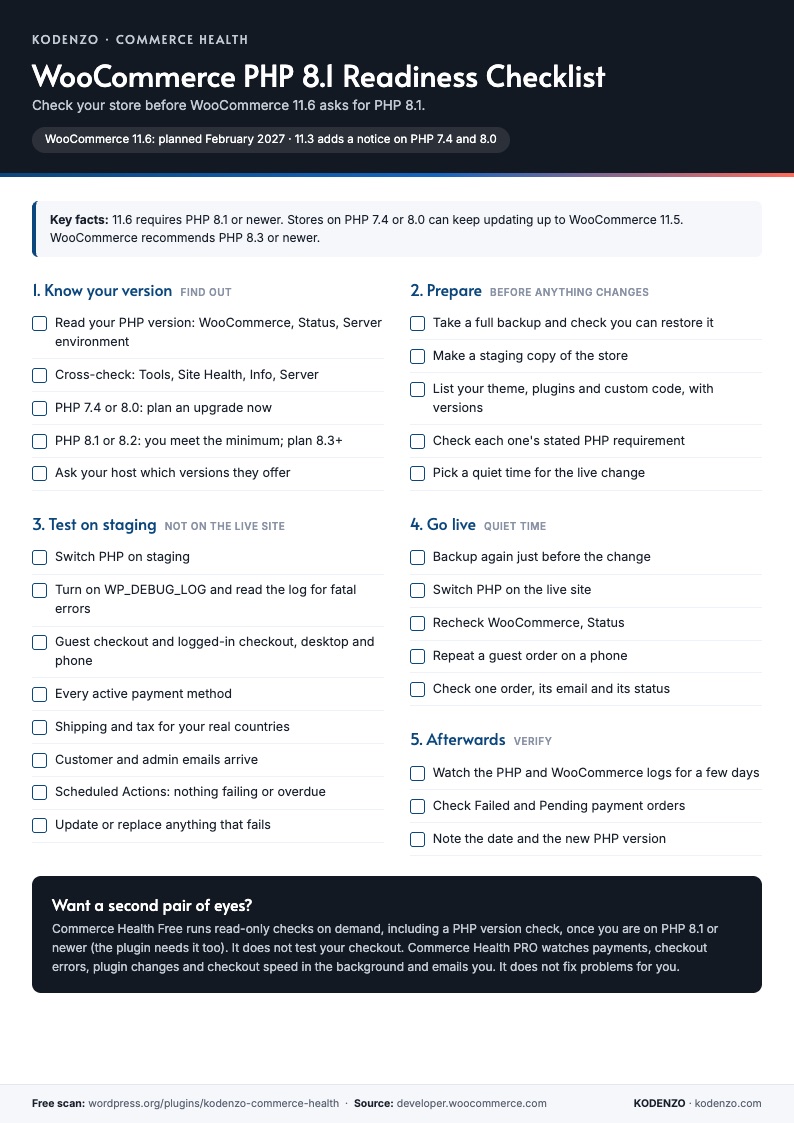
Free download · PDF
WooCommerce PHP 8.1 Readiness Checklist
What to check before, on staging, on go-live and afterwards, on one printable page.
Frequently asked questions
When does WooCommerce require PHP 8.1?
WooCommerce 11.6, which is planned for February 2027. Dates can change, so check the official post.
Will my store stop working if I stay on PHP 7.4 or 8.0?
No. According to WooCommerce, the change does not deactivate an existing installation. WordPress will stop offering the update that needs a newer PHP, so you stay on WooCommerce 11.5, which is only a temporary option.
Which PHP version should I upgrade to?
WooCommerce recommends PHP 8.3 or newer, and requires at least 8.1 for 11.6. Choose the newest version your theme and plugins support, and test it on staging first.
What is the WooCommerce 11.3 notice?
A dismissible admin notice, shown to stores on PHP 7.4 or 8.0, that displays the server’s PHP version and suggests contacting your host about an upgrade.
How do I find my PHP version?
Open WooCommerce, Status and read the Server environment section, or open Tools, Site Health, Info, Server. Your host’s control panel also shows it.
Need a hand?
If you would like help testing a PHP upgrade, or your store runs many plugins and custom code, you can contact the team at KODENZO.
Source: New Requirement for WooCommerce 11.6: PHP 8.1+, WooCommerce developer blog, 29 September 2026. See also the WooCommerce server requirements, the guide to updating PHP and the PHP supported versions list. Last checked 19 October 2026.