

When checkout breaks right after an update, the update is the first suspect, but it is not always the update itself. A theme, a plugin and a setting can interact in ways that only your store has. This guide covers how to confirm the problem, find what changed, isolate the cause, roll back safely and make the next update less risky.
It is about the process, not about blaming any one plugin. Updates are how stores stay secure and supported, and most go through without trouble.
1. Confirm it is really broken
Test as a customer would: open a private (incognito) window, log out, add a product to the cart and try to check out. Do not test only while you are logged in as an administrator. An admin session can pass while customers fail, because of different permissions, saved addresses, cached pages or a different checkout path.
Write down exactly what you see: the error text, which step fails, the country and payment method you used, and the device. “Checkout is broken” is hard to fix. “Guest checkout in the UK shows an address error even though every field is filled in” is not.
2. A real example: WooCommerce 11.2.0
WooCommerce 11.2.0 was released in October 2026. In the 11.2.1 release notes, the WooCommerce team describes a regression in the classic checkout, for stores that remove address fields with the woocommerce_billing_fields or woocommerce_default_address_fields filters. On those stores checkout could be blocked with “Please enter an address to continue.”, tax could go uncharged, or shipping options could disappear. 11.2.1, released on 9 October, restored the 11.1 behaviour for how the classic checkout sends address data when the order summary refreshes.
A support thread shows how it looked from the store owner’s side. After updating to 11.2.0 the checkout showed an address error with every visible field filled in. A WooCommerce support reply explained that in 11.2.0, fields removed with a snippet were sent as empty values when the order review updated, so the country ended up empty and the address check failed. Until a fix shipped, support suggested a workaround: hide the unneeded fields with CSS and make them optional instead of removing them.
Three things are worth taking from this:
- It affected only some stores. Stores that did not remove address fields were not hit, so a store owner could update, look at the site, and see nothing wrong.
- Nothing was “wrong” with the store’s own code in the usual sense. A snippet that had worked for a long time met a change in the way checkout sends data.
- The fix came as a further release, and a temporary workaround existed in the meantime. That is a normal pattern, which is why the steps below matter more than any one bug.
3. Find what changed
Start by listing what is different from the last time checkout worked. The question is not “what is wrong” but “what changed”.
- Versions. Compare WooCommerce, your theme and every plugin before and after. Your last backup, your update emails and your hosting panel’s change history can all supply the “before”.
- WooCommerce, Status, System status. Check the WooCommerce, theme and plugin versions, the PHP version, and the template override section. An outdated template override in a theme is a classic cause of checkout trouble after an update.
- Plugin update history. The Plugins screen shows which plugins have updates and when. Some hosts and management tools keep a log of automatic updates, which is worth checking because they may have run overnight.
- Error logs. Look at WooCommerce, Status, Logs, and the PHP error log on your host, for entries from the time of the update. A fatal error or a deprecation warning that names a plugin is a strong lead.
- Changes that are not updates. A new plugin, a settings change, a PHP version change or a new snippet can break checkout just as an update can.
Then read the release notes for each component that changed, looking for words such as checkout, address, shipping, tax and payment. Release notes often name the very thing you are seeing.
4. Isolate the cause
Do this on a staging copy of the store, not on the live site, so customers are not affected while you test.
- Switch to a default theme such as Storefront. If checkout works, the theme, or a template override in it, is involved.
- Disable plugins in groups. Turn off half of them (keeping WooCommerce and your payment plugin) and test. If it works, the cause is in that half; if not, it is in the other half. Repeat to narrow it down. Our guide on how to detect WooCommerce plugin conflicts covers this in detail.
- Open the browser console and the Network tab. In Chrome, press F12 on the checkout page. Red errors in the Console point to scripts that failed. In the Network tab, look for failing requests to
wc-ajax(classic checkout) or to the Store API under/wp-json/wc/store/(checkout block). The status code and the response text often say what went wrong. A 403 points to a firewall rule, a 500 to a PHP error, and a normal response with an error message to a validation problem like the one above. - Test both checkout types if you use both. The classic checkout and the checkout block use different code, and a bug can hit only one of them. The 11.2.0 regressions are an example: the address problem was in the classic checkout and the postcode problem was in the checkout block.
If the symptom is a spinner that never finishes, our guide on WooCommerce checkout stuck loading goes deeper into reading those requests.
5. Roll back safely
If the cause is clear and a fix is not available yet, going back to the previous version of the component can get checkout working again. Do it carefully.
- Back up first: the files and the database. Make sure you know how to restore the backup.
- Roll back one component at a time, and test checkout after each. If you roll back several things at once you will not know which one mattered.
- Know the limits. Rolling back the files does not undo changes the update made to the database. Some updates change how data is stored, and an older version may not understand it. Releases that include a database update need extra care, and restoring a full backup may be safer than a rollback. For the 11.2.1 release the notes say there is no database update, but you should check the notes for every release you roll back from or to.
- Use it as a stop-gap. A rollback leaves you on an older version, possibly without security fixes. Plan to update again once a fix is released, and test again when you do.
- Consider a workaround instead. Sometimes a small, documented workaround, like the CSS and optional-field approach support suggested for 11.2.0, is lower risk than a rollback. Remove it once the fix is installed.
6. Prevent a repeat
- Keep a baseline from before the update. Note your versions, your active payment methods and shipping zones, and the result of your last checkout test. If something breaks, you know what “working” looked like.
- Run a test order after every update. A short, repeatable routine beats remembering what to check. Our 10-minute checkout test sets it out step by step.
- Keep a staging site and update there first, with the same plugins and theme as live, then repeat the test before you update the live store.
- Update one thing at a time where you can, so a problem points to a single cause.
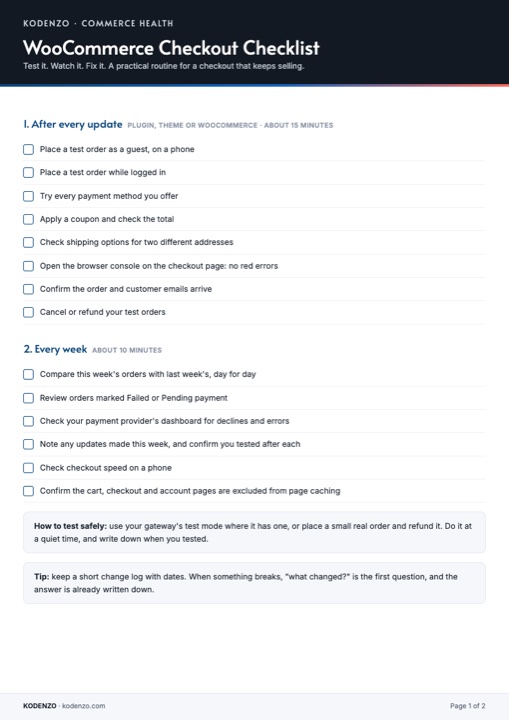
Free download · PDF
WooCommerce Checkout Checklist
What to test after every update and what to check first when checkout breaks, on two printable pages.
Where Commerce Health fits
The free Kodenzo Commerce Health plugin runs read-only checks on demand across your store configuration. Running a scan before an update gives you a baseline to compare against, and it also has a test order tool you can run by hand after the update to check the basic flow. It does not change settings or data, and a test order uses a test payment method, so it does not prove that your real payment methods work.
If checkout carries a significant share of your revenue, Commerce Health PRO adds background monitoring of plugin changes, checkout JavaScript errors and payment outcomes, and can place test orders on a schedule. It cannot find every cause, it will not tell you why a particular request fails on your server, and it does not fix problems for you. See how WooCommerce checkout monitoring works, and what configuration checks, monitoring and test orders can and cannot tell you.
Source: WooCommerce 11.2.1 release notes, 9 October 2026, and the WooCommerce support forum thread about 11.2.0. Last checked 29 October 2026.