

When orders drop suddenly, it is tempting to blame the checkout straight away. Sometimes that is right. Often it is not. A fall in orders has two broad causes: fewer people are arriving, or the same people are failing to buy. The first thing to do is work out which.
First: is it traffic or conversion?
Compare the period before the drop with the period after, using your analytics. Look at two numbers:
- Visits. If visits fell by about as much as orders, you probably have a traffic problem.
- Conversion. If visits are steady but orders fell, people are arriving and not buying. That points at the store itself: checkout, payments, prices, shipping or speed.
The checks below are grouped in that order, traffic first, then the store.
1. Where your traffic comes from
Check which channels dropped. Paused or ended ad campaigns, a changed budget, a fall in search rankings, an email that did not go out, or a social post that stopped bringing visits can all explain a sudden change.
2. Normal patterns and promotions
Compare with the same day last week and the same period last year. Weekday patterns, holidays, seasonality and the end of a sale can all look like a “drop”. A sale that just ended is a very common cause.
3. Whether your tracking broke
Sometimes orders did not fall, the reporting did. Compare the order count in WooCommerce with what your analytics shows. If WooCommerce shows normal orders, the problem is tracking, not sales.
4. Whether checkout works right now
Place a test purchase in a private window, on mobile and on desktop, with each payment method you offer. If it fails, stop here and use our guide on what to check when WooCommerce checkout is not working.
5. Your payment provider
Check the provider dashboard for a rise in declines, errors or held payments, and its status page for incidents. A gateway can fail while the rest of your store looks normal.
6. Failed, pending and cancelled orders
In the WooCommerce orders list, filter by Failed, Pending payment and Cancelled and compare the counts with a normal week. A jump in failed or abandoned payments means people are reaching checkout and being stopped.
7. What changed recently
Look at plugin, theme and WooCommerce updates, new plugins, and any setting or code changes in the days before the drop. The most recent change is the first suspect. For a method to find the culprit, see how to detect WooCommerce plugin conflicts.
8. Site speed
A store that has become slow loses buyers quietly. Check page speed and, if you can, real-visitor measurements for the checkout. A hosting problem, a heavy new plugin or a large unoptimised image can all slow things down.
9. Shipping and tax
New shipping rates, a changed free-shipping threshold, a removed zone, or tax changes can make the total at checkout jump or leave some customers with no shipping option. Review recent changes in WooCommerce, Settings, Shipping and Tax.
10. Products, prices, coupons and stock
Out-of-stock bestsellers, price changes, expired coupons and removed products affect orders without anything being “broken”. Check whether your top products are available and priced as you expect, and whether coupons customers rely on still work.
Finding the technical causes sooner
Many of these checks are about the business, and only you can judge them. The technical ones, checkout errors, failing payments, plugin changes and slow checkout, are the ones that tend to go unnoticed.
The free Kodenzo Commerce Health plugin runs read-only checks on demand across your store configuration, which helps rule out setup problems. Commerce Health PRO watches continuously for payment failures, checkout JavaScript errors, plugin changes and checkout speed, so a technical cause shows up on your dashboard when it happens, not weeks later in a sales report. It cannot see traffic, marketing, pricing or stock problems. See how WooCommerce checkout monitoring works.
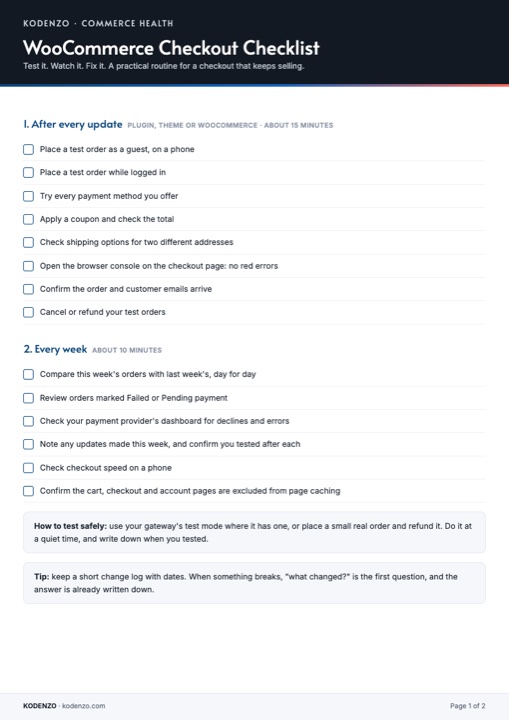
Free download · PDF
WooCommerce Checkout Checklist
The technical checks for a drop in orders, plus a weekly routine, on one printable page.