

“The payment gateway is not working” can mean several different problems, and each has different causes. Start by working out which one you have, then follow the matching section. Whichever it is, begin with two places that often hold the answer: the order notes on a failed or stuck order, and the gateway’s own dashboard.
First, find the right symptom
- The payment option does not appear at checkout.
- It appears, but the payment fails or errors.
- The customer paid, but the order stays on pending or on hold.
- It works sometimes, or it is slow.
The payment option does not appear
When a gateway is missing from checkout, WooCommerce has decided it is not available for that customer or cart. Check these in turn:
- It is enabled. In WooCommerce, Settings, Payments, the gateway must be switched on.
- Currency and country. Many gateways only support certain currencies and countries. Check the gateway’s settings and its own documentation.
- Order limits. Some gateways have a minimum or maximum order amount.
- Cart contents. Subscriptions, virtual products or certain shipping choices can limit which gateways are offered.
- SSL. Some gateways will not show on a page that is not fully on HTTPS.
- A plugin conflict or JavaScript error. Open the browser console on the checkout page. Express payment buttons and card fields often load through JavaScript, so a script error can make them vanish.
It appears, but the payment fails
- Keys and mode. Check that the API keys are correct and that test keys are not being used on the live site, or the reverse.
- Gateway logs. Turn on the gateway’s debug logging, repeat a payment and read the log under WooCommerce, Status, Logs. It usually shows the exact error the provider returned.
- Card fields not loading. If the card form does not appear or cannot be typed in, it is almost always a JavaScript error or a blocked script. Check the console.
- Declines and extra authentication. Some failures are the customer’s bank. Look at the gateway dashboard to see whether the payment was declined, or never reached the provider at all.
Paid, but the order is stuck on pending or on hold
This is often a callback problem. Many gateways confirm payment by sending a message to your site (a webhook or callback) after the customer pays. If that message does not arrive or is rejected, the customer has paid but WooCommerce never finds out.
- Check the gateway dashboard for delivery attempts to your site and the response your site gave.
- Firewalls and security plugins can block these requests. Allow the gateway’s callback address or URL.
- Caching can interfere with callback URLs. Exclude them from the cache.
- Background jobs. Some confirmations are processed by WP-Cron or Action Scheduler. If scheduled tasks are not running, they will not complete.
- The order notes often say exactly what happened, or that nothing arrived.
It works sometimes, or it is slow
- Check the provider’s status page. Partial outages are common and often brief.
- Server connections. Your server must be able to reach the gateway over a modern secure connection. An old PHP version or a hosting firewall that blocks outgoing requests can cause timeouts.
- Compare against other gateways. If only one gateway struggles while others are fine, the cause is most likely that gateway or its connection, not your whole checkout.
How to notice sooner
Payment problems are costly because the rest of the store looks normal. An uptime tool will not see them, and a customer who cannot pay rarely tells you.
The free Kodenzo Commerce Health plugin checks your payment and checkout configuration on demand, which helps rule out setup causes. Commerce Health PRO tracks failed and successful payments for each gateway and how long they take to confirm, and flags a rising failure rate on its next check. It learns from your real orders, so it does not place test payments or watch your gateway from outside your store, and it will not see a provider outage by itself. See how WooCommerce payment monitoring works.
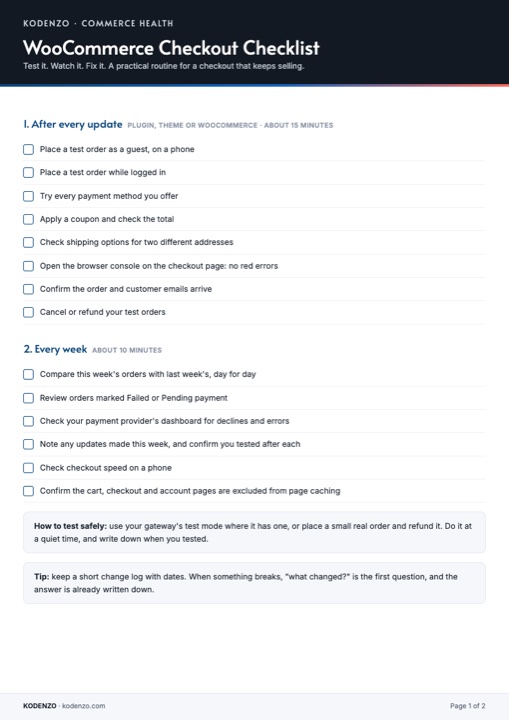
Free download · PDF
WooCommerce Checkout Checklist
What to test after every update and what to check first when payments or checkout break, on one printable page.