

Two settings you never see can slow every page of a WooCommerce store: the amount of data WordPress loads on every request (autoloaded options) and whether repeated database lookups are remembered between visits (a persistent object cache). Both are easy to check, and neither needs you to change anything to find out.
Image sizes and plugins get the blame for slow stores. These two are rarely suspected, yet they sit underneath every page. This guide explains both in plain terms and shows how to check them safely.
What are autoloaded options?
WordPress keeps settings in a database table called wp_options (your table prefix may differ). Some of those rows are marked to load automatically, on every single page request, before anything else happens. These are the autoloaded options.
A small amount is normal. The trouble starts when the total grows large, because WordPress then loads all of it into memory on every visit, including visits to pages that never use it. Common causes are settings left behind by plugins you removed long ago, large stored data, and plugins that save more than they should as autoloaded.
How big is too big?
There is no single number that suits every store. As a guide, the free Commerce Health plugin warns when the total passes about 800 KB and treats about 2 MB as critical. Treat those as prompts to look, not as proof of a problem.
How to check
The simplest way is to run a scan with the free Commerce Health plugin, which includes an Autoloaded Options Size check. It only reads the data and changes nothing.
If you or your developer prefer the database, these read-only queries show the total and the biggest rows. Run them in a tool such as phpMyAdmin, on a backup or staging copy first, and change wp_ if your prefix is different. Newer versions of WordPress can mark autoloaded rows with more values than yes, so ask your developer if the totals look odd.
SELECT SUM(LENGTH(option_value)) AS bytes FROM wp_options WHERE autoload IN ('yes','on','auto-on','auto');

SELECT option_name, LENGTH(option_value) AS bytes FROM wp_options WHERE autoload IN ('yes','on','auto-on','auto') ORDER BY bytes DESC LIMIT 10;
What to do if it is large
- Identify the owner. The name of a large option usually points to the plugin that created it.
- Do not delete rows blindly. A plugin may still need them. Take a backup and test on staging.
- Remove leftovers properly. Rows from a plugin you no longer use are usually safe to remove, once you are sure of the owner.
- Ask the plugin author if an active plugin stores a large amount as autoloaded; many can change how.
What is a persistent object cache?
While building a page, WordPress asks the database the same questions again and again. By default, it remembers the answers only until the page is finished, then forgets them. A persistent object cache keeps the answers in fast memory, using a tool such as Redis or Memcached, so the next request can reuse them instead of asking the database again.
For a store with many products, orders and plugins, that can mean far fewer database queries per page, and it helps most on pages that cannot be page-cached, such as cart and checkout.
How to check
- Run the Commerce Health scan. It includes a Persistent Object Cache check that reports whether one is in use.
- Look at WordPress Site Health. It may list a persistent object cache among its recommended improvements when none is found.
- Ask your host. Many hosts offer Redis or Memcached, and some switch it on for you.
If you do not have one
Ask your host whether Redis or Memcached is available on your plan. Setting one up usually needs a connection on the server and a plugin or file that links WordPress to it, so test on staging first, and check cart and checkout still behave. It is not the right fix for every store, and it will not make up for slow queries or heavy plugins.
What these checks cannot tell you
- A large autoloaded total or a missing cache is a likely cause of slowness, not proof of it.
- Fixing them will not help if the real problem is elsewhere, such as a slow plugin or limited hosting.
- They tell you nothing about whether checkout works.
Where Commerce Health helps
The free KODENZO Commerce Health plugin checks both of these on demand and explains each result in plain language, along with other configuration and reliability checks. It reads your configuration and changes nothing.
KODENZO Commerce Health PRO is a separate paid add-on that needs the free plugin. It re-runs the checks in the background on a schedule and measures real-visitor checkout speed, so you notice when something changes. It tells you what it found and does not fix problems for you. See the Commerce Health PRO page.
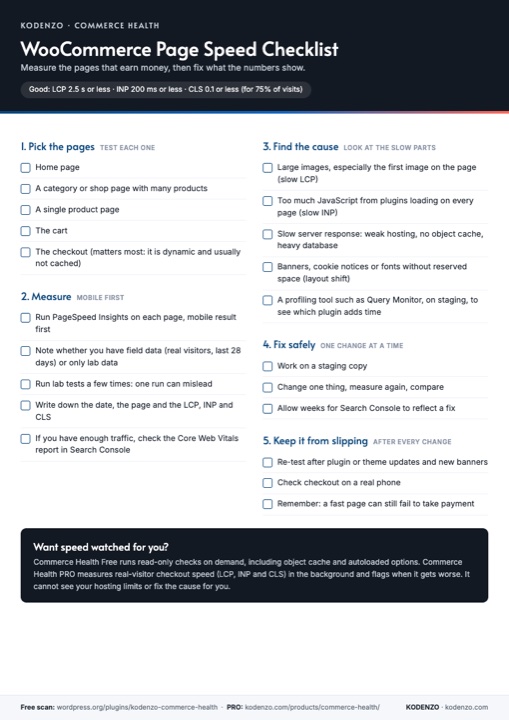
Free download · PDF
WooCommerce Page Speed Checklist
Which pages to test, how to read LCP, INP and CLS, and how to fix slow parts safely, on one printable page.
Frequently asked questions
Are autoloaded options bad?
No. Some are needed on every page. The problem is a large total, because it is loaded on every visit.
Is it safe to delete autoloaded options?
Not blindly. A plugin may still use a row. Identify the owner, back up, and test on staging first.
Do I need Redis for a small store?
Not necessarily. It helps most on stores with many products, orders and plugins. Ask your host whether it is available before deciding.
Need a hand?
If a scan shows a large autoloaded total or no object cache and you would like it handled safely, our WooCommerce performance optimisation service covers database and caching work.
See also: How to check your WooCommerce page speed.