

To find the plugin slowing your WooCommerce store, copy the store to staging, install Query Monitor, load the slow page, and look at which plugin accounts for the most database queries, slow requests and scripts. Then switch the suspect off, measure again, and compare.
“Install fewer plugins” is useless advice for a store that depends on them. The better question is which plugin is costing you the most, and whether it is worth it. This guide shows how to answer that without guessing. It assumes you already know the page is slow; if not, start with how to check your WooCommerce page speed.
Before you start: use a staging copy
- Test on staging, not the live site. You will be switching plugins off and on, which is not something to do in front of customers.
- Take a backup first, even of the staging copy.
- Test the page that is actually slow: a product page, the cart or the checkout. A fast home page tells you nothing about checkout.
Step 1: install Query Monitor
Query Monitor is a free developer tool for WordPress. It adds a menu to the admin bar, visible only to administrators, that shows what a page did while it loaded: database queries, outgoing requests, scripts, styles and PHP errors, grouped by the plugin, theme or core that caused them.
Install and activate it on the staging site only. It adds some overhead of its own, so it is a tool for diagnosing, not something to leave running on a live store.
Step 2: load the slow page and read the numbers
Log in as an administrator, open the slow page, and click the Query Monitor menu in the admin bar. Write down the page’s total time and total number of database queries. Then look at these panels:
- Queries by Component. This lists the queries and the time they took for each plugin, theme and WordPress core. A plugin near the top with far more queries or time than the others is your first suspect.
- Slow queries. Query Monitor highlights individual queries that took longer than the rest. Note which component ran them.
- HTTP API Calls. These are requests your site makes to other servers while building the page, for example to check a licence or fetch rates. A slow outside request holds the whole page up, and it is easy to miss because it is not a database query.
- Scripts and Styles. These show which plugins add files to the page. A plugin loading large scripts on every page, including pages that do not use it, is a common cause of a poor INP score.
- PHP Errors. Repeated warnings from one plugin can point to code that is doing needless work.
Step 3: confirm before you blame
The component at the top of a list is a suspect, not a verdict. Confirm it:
- Measure the page a few times and note the typical result. One run can mislead.
- Deactivate the suspect plugin on staging.
- Measure the same page the same way, again a few times.
- Compare. If the difference is small, the plugin was not the main cause. If it is large, you have found a real cost.
Change one plugin at a time, and write the results down as you go. If several plugins look equally guilty, switch them off in turn and keep a short table of page time with and without each.
Step 4: decide what to do
- Is it earning its place? If the plugin does something minor, remove it or replace it with something lighter.
- Can it be configured? Many plugins have settings to stop them loading on every page or running on every request.
- Is there an update? A newer version may have fixed the slow code. Test it on staging first.
- Tell the author. Share your Query Monitor findings. A specific report is far more useful than “your plugin is slow”.
- Is the problem deeper? If the slow part is a database query, no plugin setting will fix it. That calls for query and index work.
What this method cannot tell you
- It measures one visit from one place. Real customers have slower phones and weaker connections.
- It does not see every cause. Slow hosting, a missing object cache and large images are not a plugin’s fault and will not show up as one.
- Costs change over time. A plugin that is fine today can become slow after an update, so check again after changes.
Where Commerce Health helps
The free KODENZO Commerce Health plugin runs read-only checks on demand across your store’s configuration, including the object cache and the size of autoloaded options, two common causes of slowness. It does not profile individual plugins, so it does not replace Query Monitor.
KODENZO Commerce Health PRO is a separate paid add-on that needs the free plugin. It records plugin activations, deactivations and updates and relates them to checkout problems that follow, and it measures real-visitor checkout speed in the background. That helps you notice that a slow-down started after a particular update. It tells you what it found; it does not fix problems for you. You can read more on the Commerce Health PRO page.
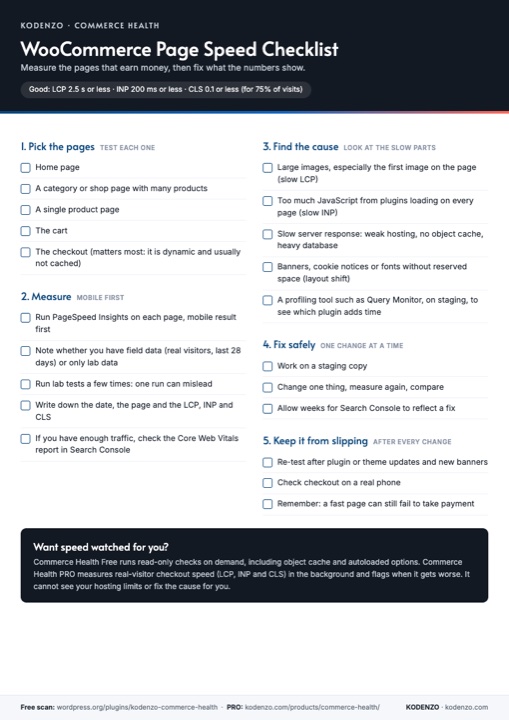
Free download · PDF
WooCommerce Page Speed Checklist
Which pages to test, how to read LCP, INP and CLS, and how to fix slow parts safely, on one printable page.
Frequently asked questions
Is Query Monitor safe to use?
It is a widely used developer plugin. Use it on a staging copy, and remove it when you finish. It adds overhead of its own and shows technical detail only to administrators.
Can I find the slow plugin without Query Monitor?
Yes, by switching plugins off one at a time on staging and measuring the page each time. It is slower and tells you less about why, but it works.
Why is the plugin with the most queries not always the slowest?
Query count and query time are different. A few slow queries can cost more than many fast ones, so look at time as well as count.
Need a hand?
If you have found the cause but not the fix, or the problem sits deeper in the database, our WooCommerce performance optimisation service is built for that.
Sources: Query Monitor on WordPress.org and Google’s Web Vitals overview.