

A WooCommerce checkout is slow for a reason the rest of your store is not: it is different for every visitor, so it cannot be cached like a product page. Check the requests it makes, the plugins that run on it, and the payment and shipping steps, in that order.
A customer who is slowed at checkout has already decided to buy, so every wasted second costs a sale directly. Yet checkout is the page most store owners test least. This guide shows what makes it slow and how to find your own cause.
Why checkout is different
A product page looks the same to everyone, so it can be saved and served quickly. Checkout depends on the cart, the address, the shipping options, the tax and the payment method, so the server has to do real work for each visit. Cart and checkout pages should also be excluded from page caching, or customers could see each other’s carts.
That means the usual speed fixes for a catalogue page do little here, and a store can score well on its home page while checkout drags.
The usual causes
- Plugins that run on checkout. Every plugin that adds fields, upsells, discounts or tracking hooks into checkout. Each is small; together they add up.
- Requests that run while the customer fills in the form. WooCommerce updates the order summary with background requests whenever the address or shipping choice changes. If shipping or tax calculation is slow, the customer waits each time.
- Slow shipping rates. Rates fetched live from a carrier, or many zones and methods, take time on every update.
- Payment gateway scripts. Gateways load scripts, often from another company’s servers. A slow script delays the payment form.
- Too much JavaScript. Large scripts that load on checkout and do not need to slow down how quickly the page responds to a tap.
- Limited hosting. Uncached pages need real processing power. A server that copes with cached pages can struggle with checkout.
What to check first, in order
1. Time it as a customer would
Open a private browser window on a phone, add a product, go to checkout, and change the country or shipping option. Notice where it pauses. This tells you whether the delay is the first load or the updates after it.
2. Watch the requests in your browser
Open your browser’s developer tools, go to the Network tab, reload checkout, and then change a shipping option. Look for requests to wc-ajax and for any request that takes much longer than the others. A slow one is a clue. Note which one it is.
3. Check cart and checkout are not cached wrongly
Confirm your caching tool excludes the cart, checkout and account pages. A page that is cached when it should not be causes errors, and one that is not excluded properly can behave oddly.
4. Look inside the page with Query Monitor, on staging
On a staging copy, install Query Monitor and load checkout as an administrator. See which plugins run the most queries or the slowest ones, and whether any outside request is slow. Our guide on finding which plugin is slowing your store goes through it step by step.
5. Test each payment method
Try every gateway you offer and note whether one is slower to show its form. A single slow gateway is easy to miss when the others are fine.
6. Switch things off, one at a time, on staging
Turn off a suspect plugin, measure checkout again, and compare. Change one thing at a time so you know what made the difference.
Fixes to try
- Remove checkout plugins that are not earning their place.
- Simplify shipping: fewer zones and methods, and avoid live carrier lookups where you can.
- Load scripts only on the pages that need them.
- Ask your host about resources for uncached requests, and whether an object cache is available.
- Test the change on staging, then repeat the checkout test on a phone.
Speed is not the same as working
A fast checkout can still fail to take payment, and a slow one can still work. After any change, place a test order the way a customer would. Our checkout checklist has the routine.
Where Commerce Health helps
The free KODENZO Commerce Health plugin runs read-only checks on demand across your store’s configuration. It does not time your checkout.
KODENZO Commerce Health PRO is a separate paid add-on that needs the free plugin. It measures real-visitor checkout speed (LCP, INP and CLS) in the background and flags it when it gets worse, so a slow plugin update shows up soon after it is installed. It reports what your visitors experience. It cannot see your hosting limits and it does not fix the cause for you. Read more on the Commerce Health PRO page.
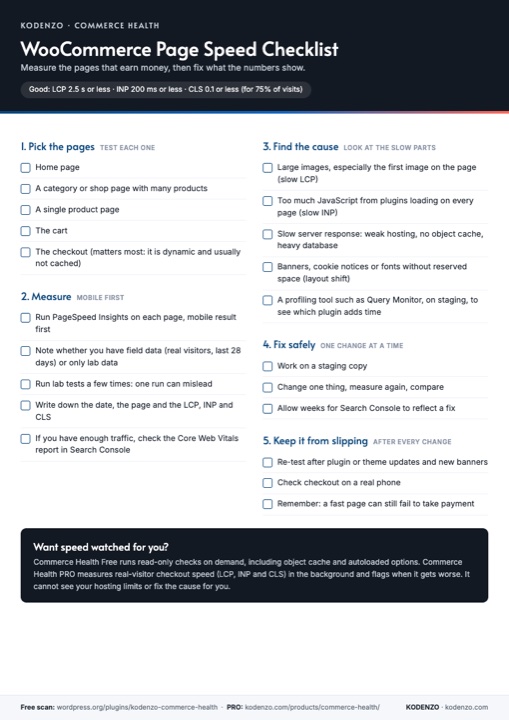
Free download · PDF
WooCommerce Page Speed Checklist
Which pages to test, how to read LCP, INP and CLS, and how to fix slow parts safely, on one printable page.
Frequently asked questions
Why is checkout slower than my product pages?
Product pages are the same for everyone and can be cached. Checkout depends on the cart, address, shipping and payment, so the server works for each visit.
Should I cache my checkout page?
No. Cart and checkout pages should be excluded from page caching. Other speed work, such as an object cache, can still help.
What is a good checkout speed?
Google treats a page as good when at least 75% of visits have an LCP of 2.5 seconds or less, an INP of 200 milliseconds or less and a CLS of 0.1 or less. Aim for those on checkout, measured on a phone.
Need a hand?
If you have found a slow part you cannot fix, or the cause sits in custom code or the database, our WooCommerce performance optimisation service can take it on.
Source for the thresholds: Google’s Web Vitals overview.