

A WooCommerce update can leave your store looking normal while one path through checkout is broken, so test the checkout itself every time you update.
WooCommerce 11.2.0 was released on 7 October 2026. Two days later, WooCommerce 11.2.1 fixed two regressions that 11.2.0 had introduced. The 11.2.1 release notes describe both.
On classic checkout, stores that remove address fields could see checkout blocked, tax not charged, or shipping options disappear. On the checkout block, postcode validation rejected some valid postcodes, including some in Argentina and a few other countries.
Not every store was affected. But an owner who only checked that the home page loaded would have seen nothing wrong. The site looked normal while one path through checkout was broken, and that is what this checklist is built to catch.
Release notes tell you what changed. They cannot tell you whether your store, with your own theme, gateways and plugins, still completes an order.
Download the free printable checklist (PDF)
Why “the site loads” is not enough
Checkout is where WooCommerce, your theme, your payment gateways, shipping, tax and your other plugins meet. A change in any one of them can break the whole path.
The home page, the shop and the product pages can all work while checkout fails for one country, one payment method or one kind of customer. That is why the test below follows a real purchase from start to finish. It takes about ten minutes once you know the routine.
Before you update
Spend five minutes on preparation. It makes any problem much easier to fix.
- Take a full backup, and know how to restore it. A backup you have never restored is a guess.
- Read the release notes. Look for changes to checkout, payments, shipping and tax.
- Use a staging copy if you have one. Update there first and run the test below.
- Write down your active payment methods and shipping zones. You will need this list for the test.
- Pick a quiet time, and keep the previous versions. Know which versions you would roll back to.
The 10-minute checkout test
Run these seven steps after every update to WooCommerce, your theme, a payment plugin or a shipping plugin.
1. Check out as a guest
Open the store in a private browser window. Add a product to the cart, go to checkout and place an order without logging in.
2. Change the country and postcode
Run the checkout again with the countries you actually sell to. Check that shipping options appear, that tax is calculated, and that valid postcodes are accepted.
This is the step that would have caught both 11.2.0 problems.
3. Apply a coupon
Try a valid coupon and check that the total changes. Then try an invalid one and check that you see a clear message.
4. Pay with every active gateway
Use each payment method you offer, in test mode or with a small real order. A gateway can fail on its own while the others work.
5. Repeat on mobile
Use a real phone, not only a narrow desktop window. Check that the payment form, buttons and fields work with a touch screen.
6. Check the order itself
Open the order in WooCommerce and confirm the status, items, totals and customer details. Then check that the customer confirmation email arrived.
7. Check background tasks and webhooks
Some things happen after the customer leaves checkout, and an update can break them without any error on the page.
- Open WooCommerce, Status, Scheduled Actions, and look for actions marked Failed or Past-due.
- If you use webhooks, for example to send orders to a shipping or accounting system, open WooCommerce, Settings, Advanced, Webhooks, and check that each one is still Active. WooCommerce can disable a webhook that keeps failing.
- Place a small order and confirm that it reached the right status, and that anything connected to it, such as stock, fulfilment or accounting, updated.
Edge cases worth adding
Add these when they apply to your store:
- A logged-in customer with saved details and addresses.
- Stores that remove or reorder address fields.
- Digital, subscription and variable products.
- Both checkout types, if you use the checkout block and the classic checkout.
- JavaScript errors in the browser console during checkout.
- Clearing the page, object and CDN caches, then testing again.
If something fails
- Write down the exact step, country, payment method and device.
- Check the browser console, the PHP error log and WooCommerce, Status, Logs.
- Test for a plugin conflict on staging. Switch to a default theme, deactivate non-essential plugins, then re-enable them one at a time.
- Check whether a newer release fixes the issue.
- Roll back if you need to, and report the problem to the plugin author.
Testing by hand has limits
A manual test shows your checkout at the moment you test it. It cannot tell you what happens an hour later, or for a customer in a country you did not try.
The free KODENZO Commerce Health plugin runs 34 read-only checks across seven categories (Commerce, Reliability, Performance, Database, Configuration, Security and Integrations) and gives a 0 to 100 health score. It does not change settings or data, and it sends no telemetry. The only outbound request is a check of your own store’s home page.
KODENZO Commerce Health PRO is a separate paid add-on that needs the free plugin. It adds ongoing monitoring, for example of checkout and payment gateway outcomes, checkout JavaScript errors and plugin changes. You can read more on the Commerce Health page.
Commerce Health does not replace a manual checkout test, and it cannot detect every possible problem.
Download the checklist
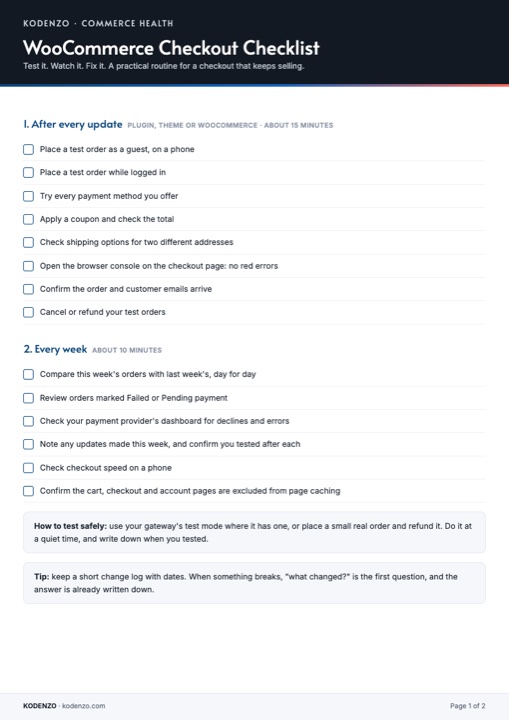
We turned this test into a two-page printable checklist. It has the before-update steps, the checkout steps and a place to note what you found.
Free download · PDF
WooCommerce Checkout Checklist
The before-update steps, the checkout steps and a place to note what you found, on two printable pages.
Need a hand?
If checkout is failing, your store runs many plugins, or you need custom WooCommerce work, you can contact the team at KODENZO.
Source: WooCommerce 11.2.1 release notes, 9 October 2026. Last checked 14 October 2026.