

When a WooCommerce checkout stops working, the symptoms vary: the place-order button does nothing, the page keeps reloading, payment options disappear, or customers see an error and leave. The cause is usually one of a short list of things. This guide takes them in the order that finds the problem fastest.
Before you start: reproduce it
Open your store in a private (incognito) window and try to buy something. Note what happens, which device and browser you used, whether you were logged in, and which payment method you chose. If it only fails for one payment method, or only for logged-out visitors, that already narrows things down.
1. Rule out caching
The cart, checkout and account pages must never be served from a page cache. WooCommerce asks caches to skip them, but some hosts, CDNs and optimisation plugins ignore that. Clear your site cache and your CDN cache, then test again. If it works, add the cart, checkout and my-account pages to your cache exclusion list.
2. Open the browser console
In Chrome, press F12 on the checkout page and open the Console tab. Red errors such as Uncaught TypeError or jQuery is not defined usually mean a script failed, and a failed script is the most common reason a checkout button does nothing. Note which file the error points to: it often names the plugin or theme at fault.
If you use an optimisation plugin, try turning off JavaScript minify, combine and delay options for the checkout page. These settings are a frequent cause of broken checkouts.
3. Look at what changed recently
Checkouts rarely break by themselves. Think about what changed in the last few days: a plugin update, a theme update, a WooCommerce update, a new plugin, a settings change. The Plugins screen shows which plugins updated recently, and your hosting panel may show server or PHP version changes. The most recent change is the first suspect.
4. Run a conflict test
Switch to a default theme such as Storefront and deactivate every plugin except WooCommerce, then try the checkout. Do this on a staging copy, not on the live store. If you cannot use staging, the official Health Check and Troubleshooting plugin has a troubleshooting mode that changes the theme and plugins only for your own session, so visitors are not affected. Re-enable plugins one at a time until the problem returns.
5. Check the checkout page itself
Go to WooCommerce, Settings, Advanced and check that the Checkout page is set and still exists. Open it in the editor and confirm it contains the checkout block or the checkout shortcode. A page that was edited, duplicated or deleted can silently break checkout.
6. Check the payment gateway
In WooCommerce, Settings, Payments, confirm the gateway is enabled and that its keys match the mode you are in (test or live). A common mistake is live keys in test mode, or the reverse. Most gateways also have a debug log option, and the logs appear under WooCommerce, Status, Logs.
7. Check shipping
If a customer’s address matches no shipping zone, or a zone has no method available, there are no shipping options and checkout cannot complete. In WooCommerce, Settings, Shipping, check that every zone has a method and that shipping classes are priced where you use them.
8. Check required fields and validation
Custom checkout field plugins, address validators and phone or postcode rules can reject valid input. Try a plain address with every field filled in. Also look for a required field that is hidden by your theme, which would block submission without any visible message.
9. Look for SSL and mixed content problems
Your store should load completely over HTTPS. In the console, warnings about mixed content mean something on the page is still loading over HTTP, and browsers may block it. Check that the WordPress and Site addresses in Settings, General, both start with https.
10. Check the server
Open the Network tab in your browser tools while you press the place-order button. Look for failing requests: a 500 error often points to a PHP error, and a 403 often means a firewall or security rule is blocking the request. Turn on WP_DEBUG_LOG temporarily, repeat the test and read the log in wp-content. Also check that your PHP memory limit is not too low for your plugins.
11. If you use the checkout block, check the REST API
The block-based checkout talks to WooCommerce through the REST API. A security plugin, firewall rule or server setting that blocks or restricts REST requests will break it. Test your REST API by visiting /wp-json/ on your site while logged out: if it returns an error, that is your lead.
How to stop finding out from customers
Everything above works, but it only helps once you already know there is a problem. The harder part is knowing quickly.
The free Kodenzo Commerce Health plugin runs read-only checks on demand across WooCommerce setup, shipping, SSL, background jobs and server configuration, and gives you a health score with plain-language fixes. It will not tell you why a specific customer failed to pay, but it quickly clears many of the configuration causes above.
Commerce Health PRO goes further by watching continuously: it records payment failures for each gateway, checkout JavaScript errors, plugin changes and real-visitor checkout speed, and flags a problem as it shows up. Read how WooCommerce checkout monitoring works.
Free download · PDF
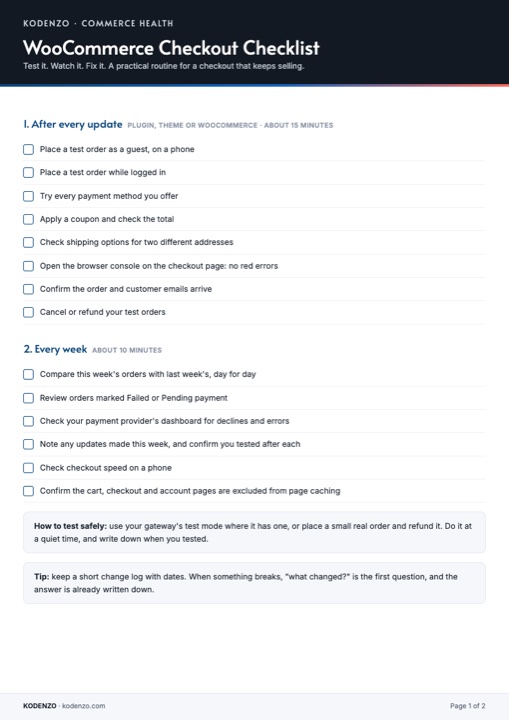
WooCommerce Checkout Checklist
This order of checks on one printable page, plus what to test after every update.