

Black Friday and Cyber Monday are the days a WooCommerce store is under the most pressure. In 2026 they fall on November 27 and November 30. Traffic is higher, customers are less patient, and a checkout problem that would cost a few sales on a normal Tuesday can cost a great deal in a single afternoon. Almost everything below is better done weeks ahead than on the day itself.
Four weeks before: decide your change freeze
Most holiday disasters start with a last-minute change. Pick a date, such as one week before Black Friday, after which nothing changes on the live store without a very good reason: no plugin updates, no theme edits, no new extensions.
- Do your updates now, on a staging copy first, and test checkout after each one.
- Take a full backup, and confirm you know how to restore it.
- Write down the plugin and theme versions you are running, so you know what “working” looked like.
If a conflict does appear, our guide on how to detect WooCommerce plugin conflicts shows how to narrow it down quickly.
Run a full test purchase on every payment method
Test as a guest and as a logged-in customer, on a phone and on a desktop. Try each payment method you offer, a coupon, and at least two shipping addresses. Check that the order and customer emails arrive. Our free WooCommerce Checkout Checklist (PDF) has this routine on one page.
Talk to your payment provider
A payment gateway can slow down or hold payments when volume jumps, especially on newer accounts. Before the sale:
- Check your account’s transaction limits and any daily volume caps.
- Review fraud and risk settings, so genuine customers are not blocked by rules set for quiet days.
- Confirm live keys are in place and that webhooks or callbacks are being received.
- If you expect a big spike, tell the provider in advance.
Check your hosting and speed
Ask your host what happens at your plan’s limits: how many visitors it handles at once, and whether there are resource caps. Then check the basics yourself:
- The cart, checkout and account pages are excluded from page caching.
- Product and banner images are sized sensibly, so pages load quickly on mobile.
- Checkout loads quickly on a phone connection, not only on your office Wi-Fi.
Review prices, stock and coupons
- Scheduled sale prices: check start and end dates and times, and your site’s time zone.
- Coupons: check usage limits, expiry dates, minimum spends and product restrictions, so a code does not quietly stop working. Expired or used-up coupons are a common cause of angry customers.
- Stock: confirm quantities, and decide how you want backorders handled.
Check shipping and tax
Make sure every shipping zone has a method, and that shipping classes are priced. Check free-shipping thresholds, holiday delivery cut-off dates, and any banner or message that tells customers when to order by. A shipping setup that returns no options stops a checkout completely.
Confirm your background jobs are running
Scheduled sales, coupon expiries and many confirmations depend on WP-Cron or Action Scheduler. If scheduled tasks are not running, things that should happen at midnight may not. The free Kodenzo Commerce Health plugin checks WP-Cron and Action Scheduler health, along with your shipping and tax configuration, SSL, PHP memory and update status, in one read-only scan.
Plan how you will watch the sale
Decide who is watching, and what they look at. A simple plan:
- Compare orders each hour with the same hour last week, or in a normal week.
- Check the Failed and Pending payment order lists.
- Keep your payment provider’s dashboard open.
- Know who to call at your host and your payment provider, and have their numbers ready.
- Agree a rollback plan, so you know what you would undo first if something breaks.
After the sale
When Cyber Monday ends, review failed orders, checkout speed and anything customers complained about, and write down what you would change next year. Then lift your change freeze.
Let something watch while you work
On a busy day you will not be refreshing a dashboard every few minutes. Commerce Health PRO watches in the background for what often goes wrong: failing payments for each gateway, JavaScript errors on the checkout page, plugin updates and changes, and real-visitor checkout speed. It learns from real orders and visits, so it cannot see traffic problems or hosting limits, and it does not run load tests. See how WooCommerce checkout monitoring works, or start with a free WooCommerce health check before the sale.
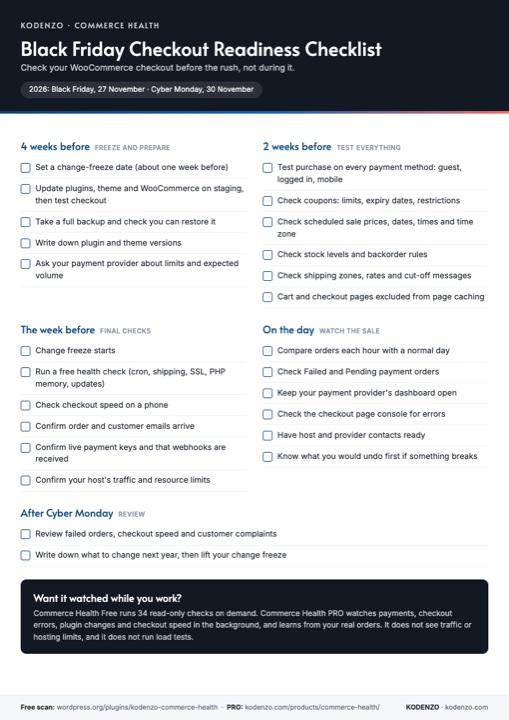
Free download · PDF
Black Friday Checkout Readiness Checklist
This article as one printable page, from the change freeze four weeks out to the review after Cyber Monday.