

A store that loads is not the same as a store that sells. A checkout can break while every page still opens, and nothing looks wrong until someone notices that orders have slowed. This guide covers how to check your checkout properly, what to watch between checks, and what is worth automating.
Why “the site is up” is not enough
Uptime tools ask one question: does the page respond? Checkout failures live deeper. A script error can stop the place-order button, a payment gateway can reject payments, a plugin update can break a field. In all of these, your homepage and product pages keep loading normally.
Layer 1: a regular test purchase
Nothing replaces going through checkout yourself. It tests the whole flow from start to finish. Do it:
- After every plugin, theme or WooCommerce update.
- After any change to payments, shipping, taxes or checkout fields.
- On a regular schedule, such as once a week, even when nothing changed.
When you test, cover the cases customers actually use: a guest order and a logged-in order, each payment method you offer, a coupon, and a mobile device. Use your gateway’s test mode where you can, or place a small real order and refund it.
Layer 2: signals you can check in a minute
Between test purchases, a few quick looks tell you a lot:
- Order volume against normal. Compare today’s orders with the same day and hour in previous weeks. A sudden drop with no change in traffic deserves a look.
- Failed and pending orders. The orders list filtered by Failed or Pending payment shows where customers got stuck.
- Your payment provider’s dashboard. It shows declines and errors you may not see in WooCommerce.
- The browser console on checkout. Red errors mean a script is failing.
- The PHP error log. Repeated fatal errors around checkout time are a clear warning.
Layer 3: the funnel
Analytics can show how many visitors add to cart, start checkout and complete a purchase. A drop at the checkout step is a strong sign something is wrong. The limit is timing: analytics tells you after the fact that fewer people completed checkout, and not what caused it.
A simple weekly routine
- Place one test order, on mobile.
- Check failed and pending orders from the past week.
- Glance at the payment provider dashboard.
- Note any plugin or theme updates and test after each.
- Open the checkout console once and look for errors.
What you can automate, and what you cannot
Uptime monitors can check that a page loads. Scripted test purchases exist in some tools, but they take effort to set up and maintain, and they only test the path you scripted.
Commerce Health PRO takes a different approach. It does not place test orders. Instead it learns from real activity on your store: it records successful and failed payments for each gateway, JavaScript errors on the checkout page, plugin activations and updates, and real-visitor checkout speed. It re-runs its diagnostic checks in the background, shows a dashboard that proves monitoring is running, and sends a weekly summary. When something goes wrong it shows up on your dashboard as it happens, with the recent plugin change recorded next to it.
That is a complement to your test purchases, not a replacement. Test by hand after big changes, and let monitoring cover the time in between. Read more about WooCommerce checkout monitoring, or see how it compares with checking by hand.
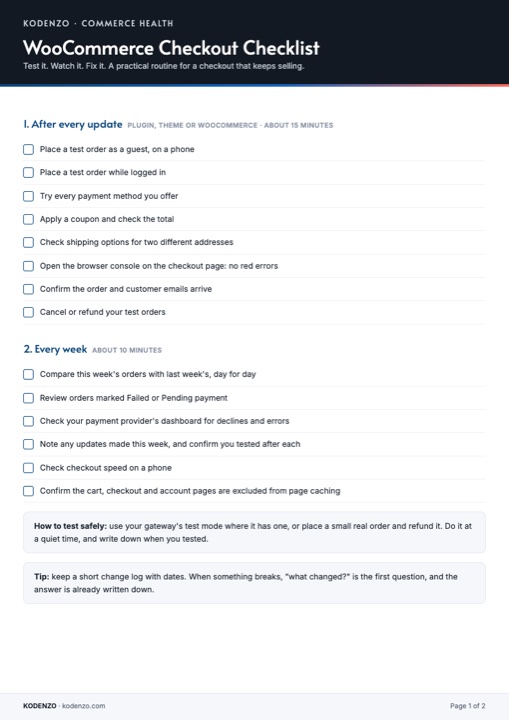
Free download · PDF
WooCommerce Checkout Checklist
The test-purchase routine and weekly check from this guide, on one printable page.